VLC for IPTV: Good Enough, or Time for a Real IPTV Player?

VLC is one of the best free programs ever made. If a file has video in it, VLC will probably play it, and that includes IPTV. Open an M3U playlist link and your channels show up.
So why would anyone pay for an IPTV player? Because VLC is a media player, and live TV needs a few things a media player was never designed to do.
Full disclosure: I’m Jerry, and I make ChannelBox. I’ve tried to be fair to the other players, and I’ll tell you when one of them is the better pick.
How to watch IPTV in VLC
- Open VLC and choose Media → Open Network Stream (on a Mac: File → Open Network).
- Paste your provider’s M3U playlist link and click Play.
- Open the playlist view (Ctrl+L on Windows) to see the channel list.
That’s it. If you only watch a couple of channels and you know their names, VLC may be all you ever need.
A free tip if VLC freezes
VLC keeps about one second of live video stored by default. That’s fine for files but tight for IPTV. In VLC’s preferences, choose Show settings: All, go to Input / Codecs, and raise Network caching to 5000–10000 ms. Channels take longer to start, but short gaps from your provider stop freezing the picture.
Where VLC falls short for live TV
- No TV guide grid. VLC doesn’t show an IPTV programme guide, so you can’t see what’s on.
- No Xtream Codes login. Many providers give a server, username and password. VLC needs an M3U link instead.
- No channel numbers. You can’t type 24 to go to channel 24. Flipping channels means clicking through the playlist.
- No favourites, catch-up, or movie and series libraries.
- It doesn’t re-tune. If a stream drops, it stops, and you press play again.
What a dedicated IPTV player adds
Here’s the same provider in ChannelBox, the IPTV player I make for Windows and Mac:
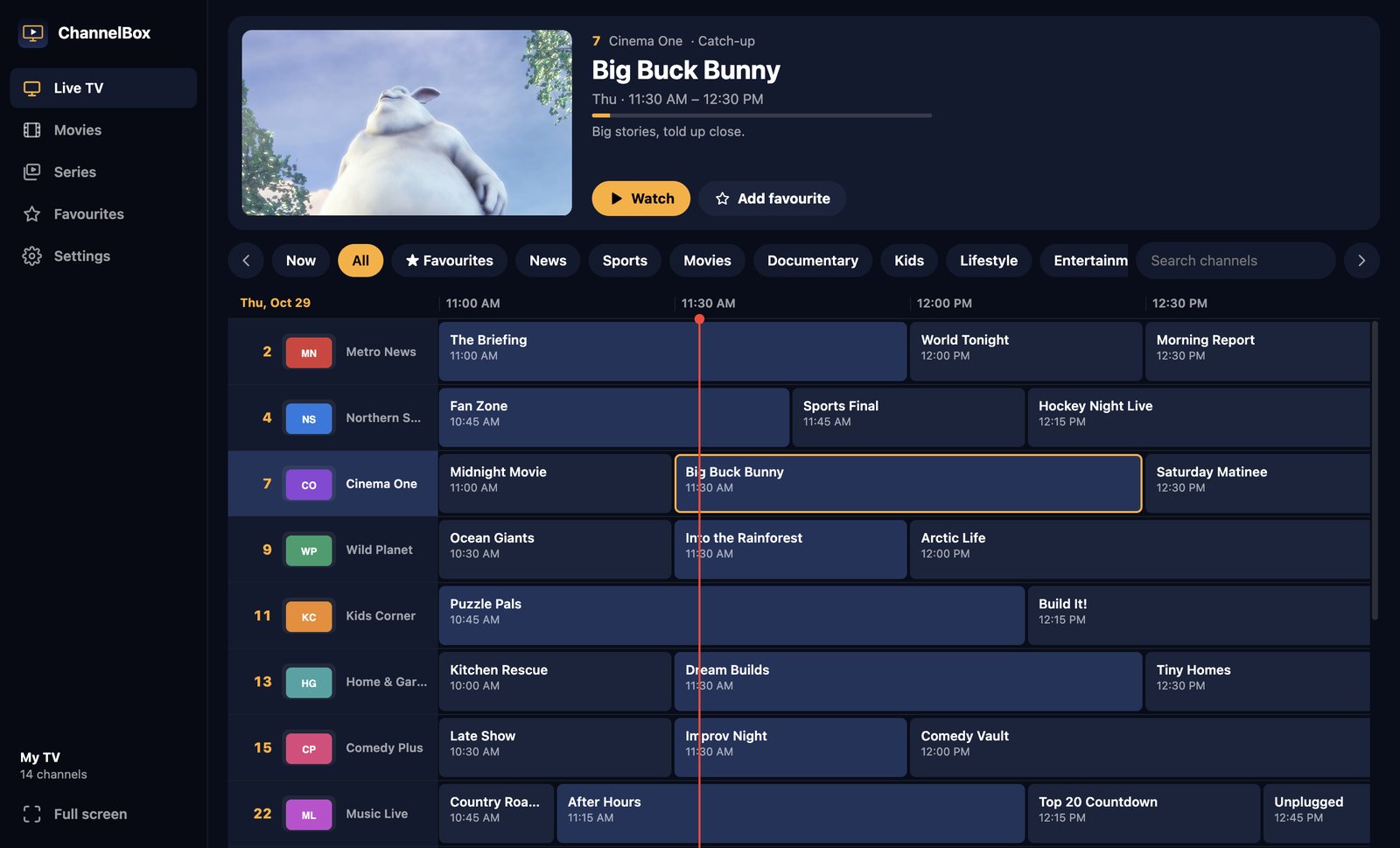
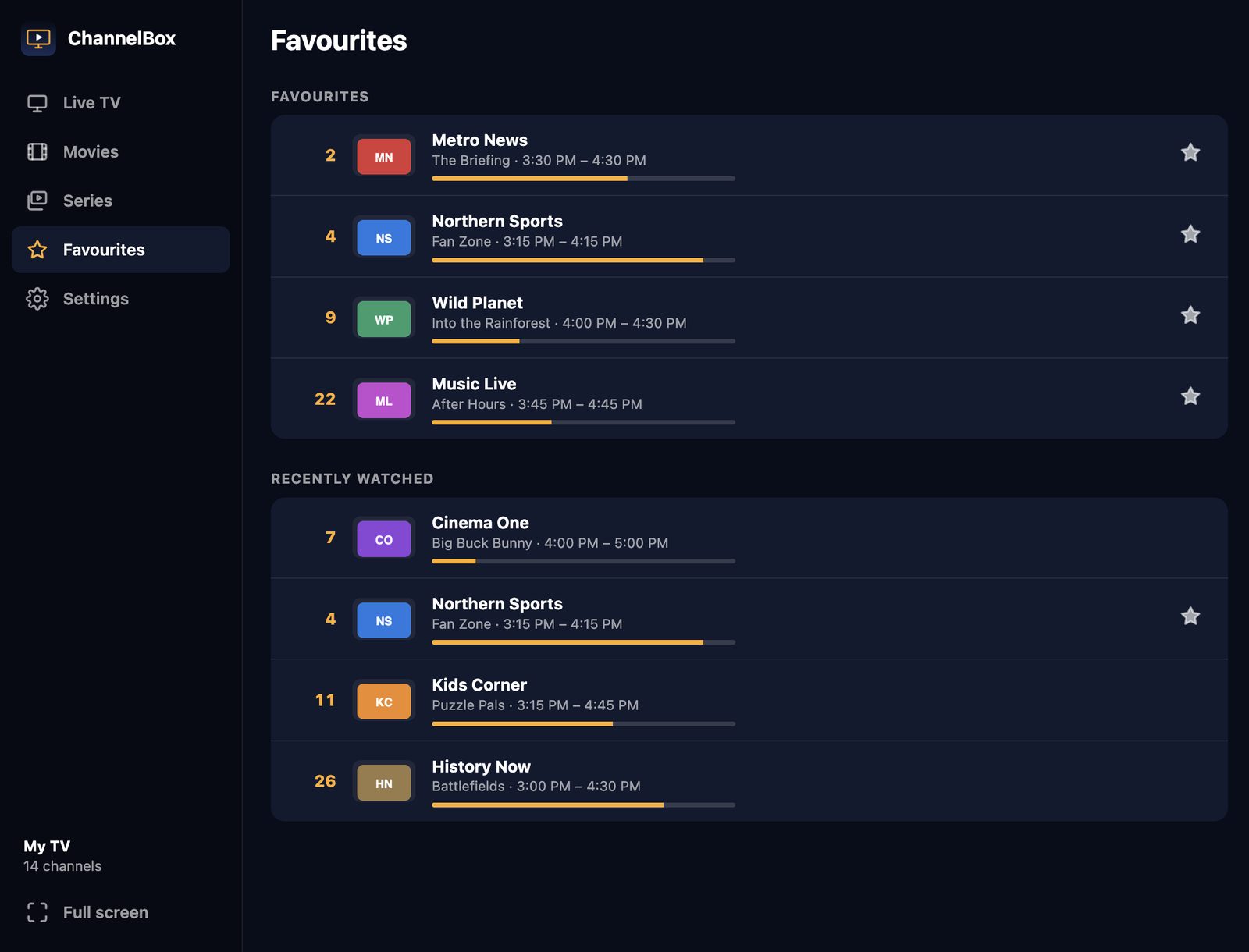
The guide fills itself in from your login or playlist and refreshes every 12 hours. Star the channels you watch and they get their own page, with what’s on right now:
VLC vs ChannelBox
| Feature | VLC | ChannelBox |
|---|---|---|
| Price | Free | $36 USD once |
| Plays M3U playlists | Yes | Yes |
| Xtream Codes login | No | Yes |
| TV guide grid | No | Yes, with a live preview |
| Channel numbers and info banner | No | Yes |
| Anti-freeze buffer | About 1 second by default (adjustable) | About 15 seconds, automatic |
| Re-tunes a dropped stream | No | Yes |
| Dolby sound | Yes | Yes |
| Movies, series, catch-up | No | Yes, where your provider offers them |
My honest take
If you watch a channel or two, use VLC and raise the network caching. It’s free and it’s great.
If you want to sit down and channel-surf like cable, browse a guide, and not babysit freezes, that’s what a dedicated IPTV player is for.
Try ChannelBox: a cable-style TV guide, a 15-second anti-freeze cushion and Dolby sound that works, for Windows and Mac. $36 USD once, no subscription →
Frequently asked questions
Can VLC play IPTV?
How do I stop IPTV buffering in VLC?
Does VLC have an EPG for IPTV?
Need a website that actually brings in work?
I build fast, modern sites for trades and local businesses across Kitchener-Waterloo.
Get in touch